
How to Turn a Storyboard Into Video in FinalBit (With High Consistency)

Updated on


 @finalbitai
 @finalbitai
Turning a storyboard into video is one of the most exciting—but also most fragile—parts of the filmmaking process. Most AI tools can generate images or clips quickly, but they often fail at the one thing filmmakers need: visual continuity.
FinalBit fixes that by letting you build a consistent character and location foundation first, then push shots from your storyboard directly into video. This keeps the same hero, the same environment, and the same visual language across the whole project.finalbitai+1
1. Why most storyboard‑to‑video workflows fail
A lot of “storyboard to video” tools are built to generate fast, not to reason about your project. Every time you regenerate an image or generate a clip, the character can change, the location can reset, and the costume or mood can drift. That makes it hard to treat the storyboard as a real production plan instead of a rough sketch.
FinalBit’s Scene Workflow is different because it:
- Remembers character profiles.
- Tracks location references.
- Keeps scene context tied to each shot.
This is what makes it possible to go from storyboard to video without losing continuity.
2. Before you start: import your script and define characters
-min.png&w=3840&q=75)
Most consistency problems start before the storyboard is even generated. If your characters are not clearly defined, the system has nothing solid to lock onto.
To get the most out of FinalBit:
- Import your script into FinalBit so the platform can parse scenes, characters, and structure.
- Create strong character profiles for all key characters (name, age, appearance, costume, personality traits).
- Lock those profiles so the character agent can reuse them across frames and video clips.
The character agent uses these profiles to keep faces, costumes, and proportions consistent, even when you regenerate or move from storyboard to video.
3. Set up location consistency inside FinalBit
Locations are just as important as characters. If a coffee shop looks different every time your hero passes through it, the world feels broken.
To keep locations consistent:
- Gather reference images for key locations (street, office, kitchen, etc.).
- Attach those location references to scenes or shots inside the storyboard so the system can reuse them later.
FinalBit’s location agent reuses those references whenever the script returns to the same place, so the environment feels like one continuous world instead of a random new background.
4. Enter the storyboard and Scene Workflow
Once your characters and locations are defined, move into the visual planning stage.
- Navigate to your project and open Storyboard.
- Click the storyboard placeholder to load the scene.
- Click “StoryBoard Workflow (same as Scene Workflow)” to enter the per‑scene planning canvas.
This is where you shift from “script” to “visual plan” while keeping the same character and scene context active.
5. Generate shots for the scene
Inside Scene Workflow, you can generate the shots for one scene at a time:
- Click “Bulk Generate All” to create shots for the selected scene.
- Click “Run in Background” so you can keep working while the frames are processed.
Because the character agent and location agent are already active, each shot inherits:
- The same character looks.
- The same environment style.
- The same visual logic as the rest of the project.
6. Review and refine the storyboard frames
Once the frames are ready:
- Click a frame with an image to open full view and inspect the shot.
- Close full view by clicking outside the image to return to the storyboard.
At this stage, you’re checking:
- Do the characters still match earlier scenes?
- Does the location match your reference?
- Does the staging fit your director’s vision?
If something needs to change, you can edit or regenerate a shot while keeping earlier versions in the shot history so you never lose a good direction.
7. Turn shots into video inside the storyboard
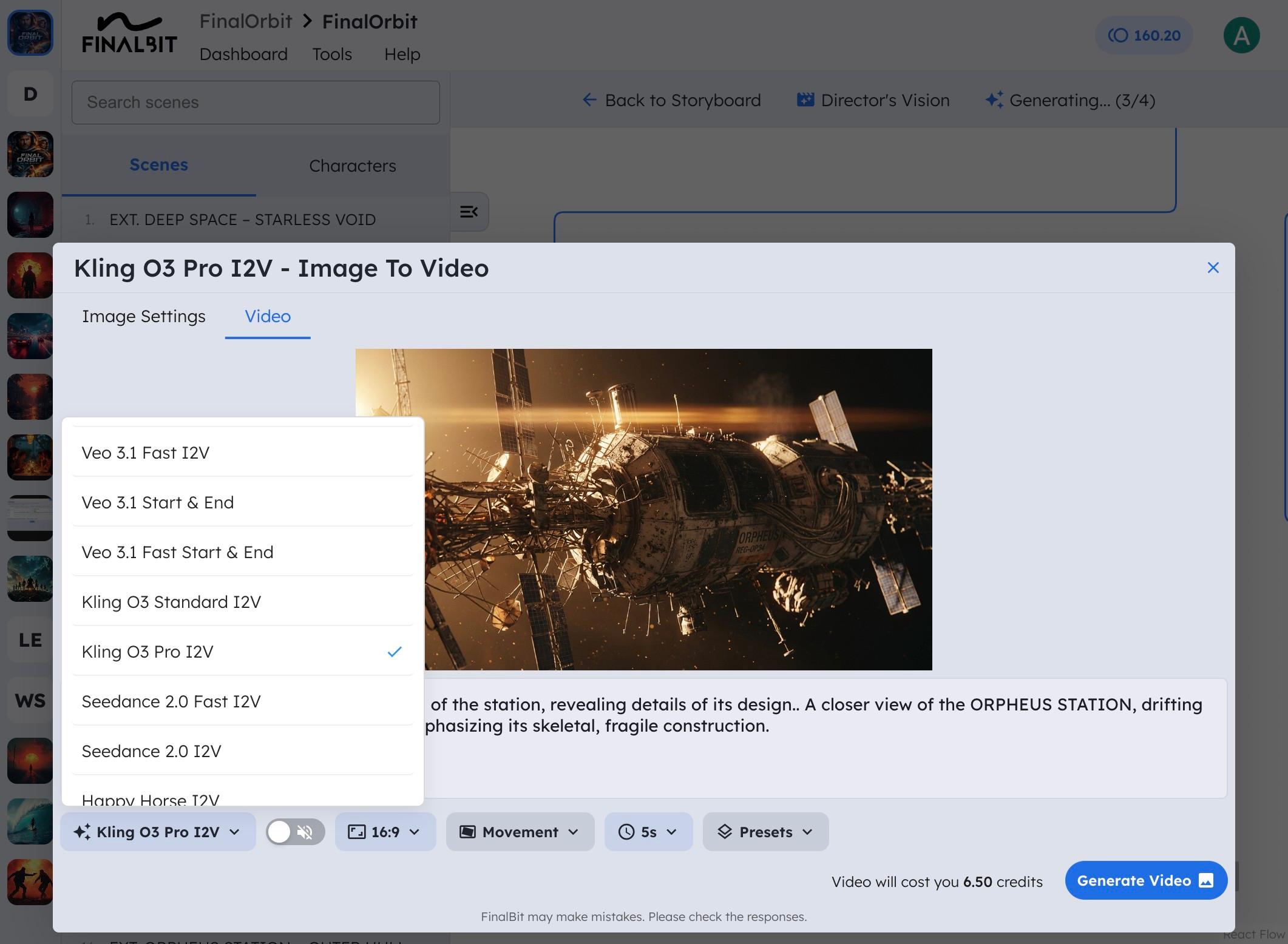
When the storyboard feels consistent and coherent, move to video generation:
- Click the video cam icon on a frame to start the video generation for that shot.
- Click “Runway: Gen‑4 Turbo” (or your preferred model) to choose the video engine. You can choose any model from Seedance 2.0
- Select your model and click “Generate Video”.
- Click “Close” to continue working while the clip renders in the background.
Because the shot is already tied to:
- the character profile,
- the scene context, and
- the location reference,
the resulting video clip preserves continuity instead of starting from scratch.
8. Keep consistency across the whole project
By repeating this workflow for each scene, you build a consistent, production‑ready set of visuals and clips. When you revisit a location or a character later, FinalBit doesn’t treat it as a new entity; it reuses the same profiles and references to keep the story visually unified.
That turns “storyboard to video” from a fragile one‑off experiment into a repeatable, team‑friendly workflow for filmmakers, agencies, and studios who need to generate fast while staying in control.